Open topic with navigation
Trigger based on Customer Gender
This functionality enables a Promotion to be triggered based on the Customer's Gender.
This will enable Promotions to be restricted to specific Genders such as Male, Female or Other.
A Promotion will only trigger when a Customer's Gender matches the Gender specified in the Promotion AND they purchase the required Stock Items specified in the Promotion.
 Pre-Requisites - Ensure that Customer's Genders are set correctly
The Gender is automatically selected based on the customer's title (e.g. selecting Mr will set the Gender to M, or selecting Mrs/Miss/Ms will set the Gender to F).
If required, a Gender of O can be selected.
After setting or updating the Customer's Gender, press the "Save" button on the top-left corner.
If required, repeat the above to update the Gender for the required customers.
Linking Promotions to Genders
Go to: Back Office > File > Sales > Promotions > Promotions.
Add or Modify a Promotion.
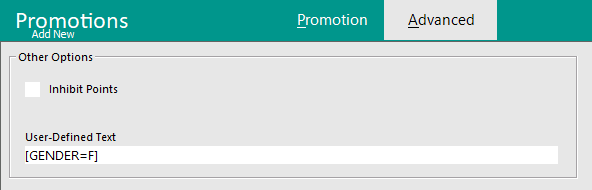
Select the "Advanced" tab.
In the Advanced Tab of the Promotion, the User-Defined Text Field is used to specify which Gender(s) the Promotion will apply to.
To restrict the Promotion to Male, enter the following into the User-Defined Text Field:
[GENDER=M]
To restrict the Promotion to Female, enter the following into the User-Defined Text Field:
[GENDER=F]
To restrict the Promotion to Other, enter the following into the User-Defined Text Field:
[GENDER=O]
To make the Promotion available to multiple Genders, enter the required Genders as a comma separated list.
[GENDER=M,F]
Promotion Examples for different Genders
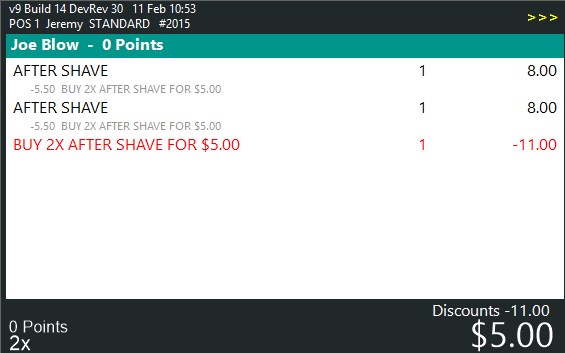
When a Promotion is restricted to Male, it will only be triggered when a Male Gender Customer is added to the sale and the Items in the Promotion are purchased.
Non-Male Customers will not receive the Promotion.
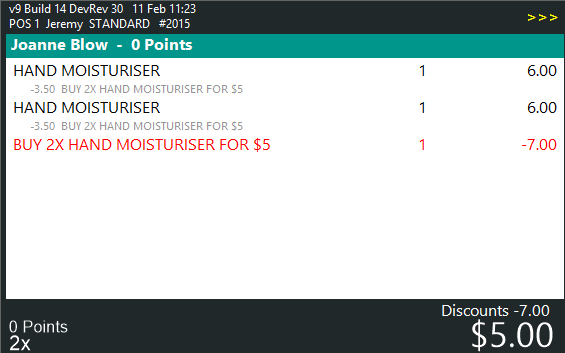
When a Promotion that is restricted to Female, it will only be triggered when a Female Gender Customer is added to the sale and the Items in the Promotion are purchased.
Non-Female Customers will not receive the Promotion.
Open topic with navigation